How to Make Pinecone Hideout Art in Path of Exile
This is a complete walkthrough for making Pinecone hideout art in Path of Exile. You will see the original image, the in-game version built from real decorations, the full decoration list, and how to import it into your hideout.
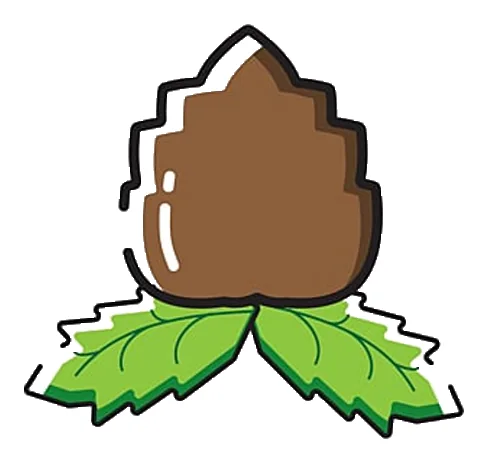 Original
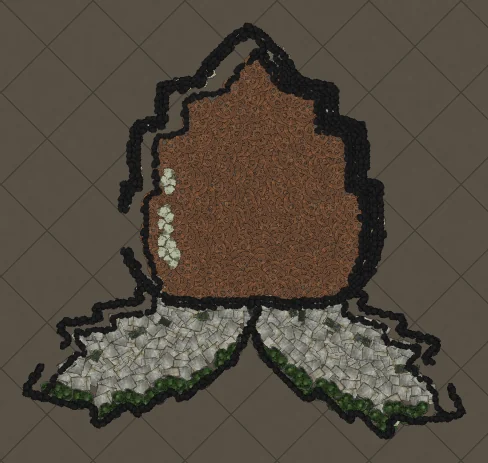 In game
A simple pinecone with green leaves. Natural subjects match Path of Exile's earthy decorations so well that the result looks like it belongs in the hideout.
The original and the in-game version
Drag the slider to compare the original image with the version rebuilt from Path of Exile decorations. Every piece on the right is a real decoration at its real in-game size, position and rotation.
Why Pinecone works so well as hideout art
Natural shapes like leaves, pinecones and flowers map naturally onto earthy decorations, so the result blends into the hideout as if it grew there.
This Pinecone uses 723 decorations of 7 types, with Excavated Brick doing most of the work. That fits inside Path of Exile's 750-decoration hideout limit, so the complete artwork imports in one go.
Decorations used for Pinecone
These are the exact decorations in this artwork, sorted by how many pieces each one contributes. The generator picks them by colour, texture and size, so large flat areas use big pieces and details use small ones.
| Decoration | Pieces | Share | Used for |
|---|---|---|---|
| Excavated Brick | 379 | Outline and line art | |
| Arcane Astronomy Tool | 130 | Colour area | |
| Vaal Curtain | 75 | Colour area | |
| Ancient Books | 61 | Colour area | |
| Broken Floor | 46 | Details and edges | |
| Shattered Blade | 30 | Details and edges | |
| Beach Coral | 2 | Details and edges |
The game skips decorations you have not unlocked when you import a hideout file. Unlock the ones above from your masters or the store before importing to get the complete Pinecone. This artwork needs no shop decorations.
How the colours were matched
Path of Exile decorations come in mostly earthy, stone and metal tones, so each colour in the Pinecone image is matched to the closest decoration family while keeping light and dark areas in the right order. Here is how each colour of the original was translated:
How to make Pinecone in your hideout
- Open the generatorGo to the POE Hideout Art Generator and choose Path of Exile 1 or Path of Exile 2.
- Pick your hideoutSelect the hideout you live in. The .hideout file only imports into the same hideout type.
- Upload your Pinecone imageDrop a Pinecone picture with a clear outline and a plain background. PNG, JPG and WEBP all work.
- Use these settingsArt size 68 units, 8 max colours, outline and line art on. This is what produced the result on this page.
- Generate a free previewIn a few seconds you see the art built from real decorations at their in-game size.
- Download and importUnlock the .hideout file, then in game open Edit Hideout, choose Import and select it.
Pinecone in Path of Exile 2
The same image in Path of Exile 2 uses 745 decorations of 6 types (+22 compared with PoE 1). PoE 2 has its own decoration set, so the generator only uses pieces that exist in PoE 2, led by Excavated Brick.
Choose Path of Exile 2 in the generator and pick your PoE 2 hideout: the art is rebuilt from PoE 2 decorations automatically, with the same outline and colour matching.
Tips for the best Pinecone
- Earth tones match decorations beautifully, so nature subjects keep their colours.
- Combine the art with real plants and rocks around it for a natural scene.
- Clear outlines help leaves and petals stay separate.
Importing the .hideout file
Go to your hideout, open Edit Hideout, choose Import and select the downloaded file. Make sure you import into the same hideout type you chose on the website. Back up your current layout with Export first if you want to keep it.
Pinecone hideout art FAQ
How many decorations does Pinecone hideout art use?
This Pinecone artwork uses 723 decorations of 7 different types in Path of Exile 1 and 745 in Path of Exile 2. It fits inside Path of Exile’s 750-decoration hideout limit, so the whole artwork imports. A smaller art size uses fewer pieces; a larger size adds detail.
Can I make Pinecone in a Path of Exile 2 hideout?
Yes. Choose Path of Exile 2 in the generator and it builds Pinecone only from decorations that exist in PoE 2.
Which decorations do I need for Pinecone?
The main decoration is Excavated Brick, and the full list with counts is in the table above. Decorations you have not unlocked are skipped when you import, so unlock them first for the complete art.
Do I need shop (MTX) decorations for Pinecone?
No. This artwork uses only regular decorations.
Where should I place Pinecone in my hideout?
Any open floor area works. The generator places it at your hideout's centre by default, and you can move it with the X and Y position before generating, for example next to your waypoint so visitors see it first.
More art guides
View all Cartoons
How to Make SpongeBob SquarePants Hideout Art in Path of Exile
SpongeBob is a perfect fit for hideout art: a square silhouette, a single bold body colour and a face made of simple shapes. Those big eyes and the buck-toothed grin survive the conversion to decorations remarkably well, which makes him a great first project.
 Games
Games
How to Make Super Mario Hideout Art in Path of Exile
Mario has been one of the most recognisable game characters for decades, and his design was built to read at tiny sizes: a red cap and shirt, blue overalls, white gloves and a dark outline. Those colour blocks map neatly onto separate decoration types.
 Cartoons
How to Make Tom the Cat Hideout Art in Path of Exile
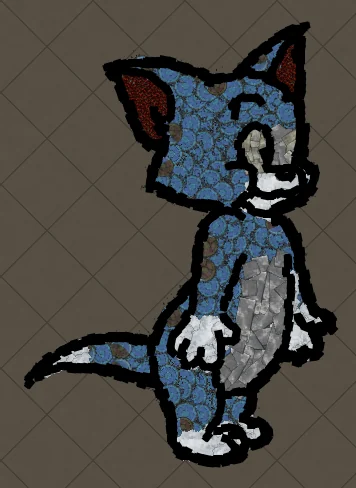
Tom from Tom and Jerry is all expressive curves: pointed ears, a long tail and a two-tone blue-grey body. The outline engine follows every one of those curves, which makes Tom a great showcase of how decorations bend along a drawing.
 Pokémon
How to Make Charmander Hideout Art in Path of Exile
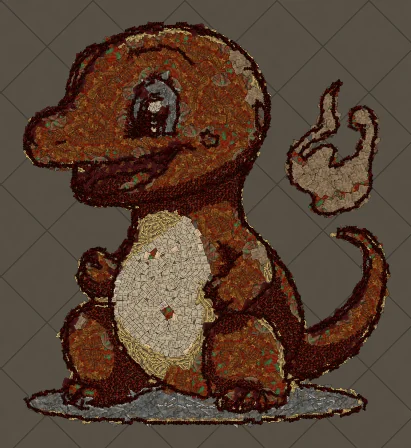
Charmander, the Fire-type starter Pokémon, is one of the most loved designs in the series. Its warm orange body, cream belly and flame-tipped tail map beautifully onto the earthy reds and browns that Path of Exile decorations do best.
 Anime
Anime
How to Make Anime Girl with Headphones Hideout Art in Path of Exile
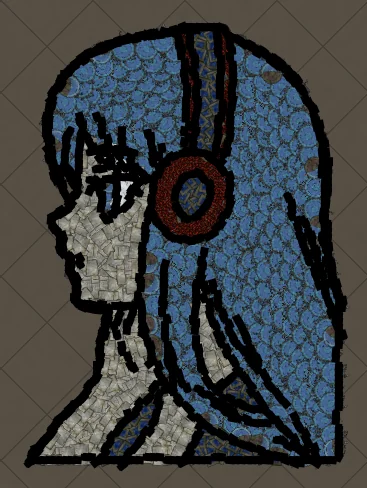
A classic anime portrait: flowing hair, big expressive eyes and bold headphones. Anime art is drawn with clean outlines and flat colour areas, which is exactly what the generator rebuilds best from decorations.
 Pokémon
How to Make Pikachu Hideout Art in Path of Exile
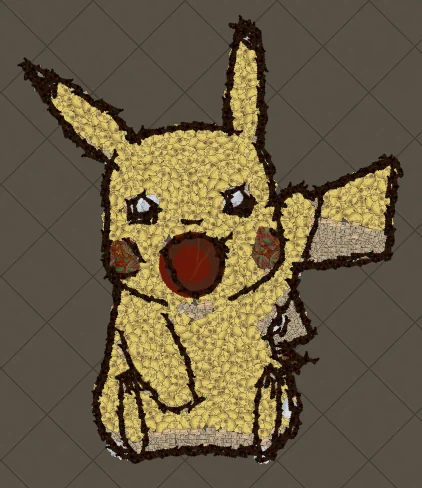
Pikachu is the face of Pokémon and probably the most requested hideout art subject. Its simple rounded shape, pointy black-tipped ears and red cheeks make it instantly recognisable, even when every piece is a Path of Exile decoration.