How to Make Tom Waving Hideout Art in Path of Exile
Want Tom Waving in your Path of Exile hideout? This guide breaks down a real Tom Waving artwork made with the POE Hideout Art Generator: every decoration it uses, how the colours were matched, and the exact steps to recreate it.
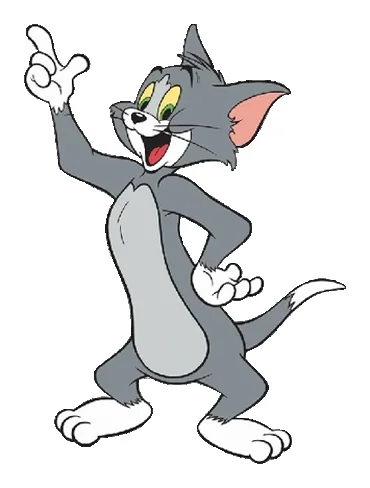 Original
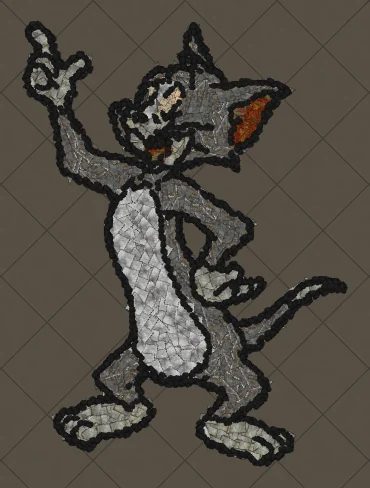 In game
Tom in a full-body waving pose. Long limbs and a long tail make this a great example of decorations being rotated to follow the direction of each line.
The original and the in-game version
Drag the slider to compare the original image with the version rebuilt from Path of Exile decorations. Every piece on the right is a real decoration at its real in-game size, position and rotation.
Why Tom Waving works so well as hideout art
Cartoons are made of thick outlines and a handful of flat colours, which translate almost one to one into decorations. The outline becomes a continuous chain of dark pieces and each colour area becomes one decoration type.
This Tom Waving uses 737 decorations of 4 types, with Charred Skeleton doing most of the work. That fits inside Path of Exile's 750-decoration hideout limit, so the complete artwork imports in one go.
Decorations used for Tom Waving
These are the exact decorations in this artwork, sorted by how many pieces each one contributes. The generator picks them by colour, texture and size, so large flat areas use big pieces and details use small ones.
| Decoration | Pieces | Share | Used for |
|---|---|---|---|
| Charred Skeleton | 607 | Outline and line art | |
| Cathedral Tiles | 116 | Colour area | |
| Ancient Books | 10 | Details and edges | |
| Vaal Curtain | 4 | Details and edges |
The game skips decorations you have not unlocked when you import a hideout file. Unlock the ones above from your masters or the store before importing to get the complete Tom Waving. This artwork needs no shop decorations.
How the colours were matched
Path of Exile decorations come in mostly earthy, stone and metal tones, so each colour in the Tom Waving image is matched to the closest decoration family while keeping light and dark areas in the right order. Here is how each colour of the original was translated:
How to make Tom Waving in your hideout
- Open the generatorGo to the POE Hideout Art Generator and choose Path of Exile 1 or Path of Exile 2.
- Pick your hideoutSelect the hideout you live in. The .hideout file only imports into the same hideout type.
- Upload your Tom Waving imageDrop a Tom Waving picture with a clear outline and a plain background. PNG, JPG and WEBP all work.
- Use these settingsArt size 64 units, 8 max colours, outline and line art on. This is what produced the result on this page.
- Generate a free previewIn a few seconds you see the art built from real decorations at their in-game size.
- Download and importUnlock the .hideout file, then in game open Edit Hideout, choose Import and select it.
Tom Waving in Path of Exile 2
The same image in Path of Exile 2 uses 743 decorations of 5 types (+6 compared with PoE 1). PoE 2 has its own decoration set, so the generator only uses pieces that exist in PoE 2, led by Charred Skeleton.
Choose Path of Exile 2 in the generator and pick your PoE 2 hideout: the art is rebuilt from PoE 2 decorations automatically, with the same outline and colour matching.
Tips for the best Tom Waving
- Keep the default outline on: it is what makes cartoon characters instantly recognisable in game.
- Six to eight colours is the sweet spot for most cartoons.
- Front-facing poses read better from the hideout camera than side views.
Importing the .hideout file
Go to your hideout, open Edit Hideout, choose Import and select the downloaded file. Make sure you import into the same hideout type you chose on the website. Back up your current layout with Export first if you want to keep it.
Tom Waving hideout art FAQ
How many decorations does Tom Waving hideout art use?
This Tom Waving artwork uses 737 decorations of 4 different types in Path of Exile 1 and 743 in Path of Exile 2. It fits inside Path of Exile’s 750-decoration hideout limit, so the whole artwork imports. A smaller art size uses fewer pieces; a larger size adds detail.
Can I make Tom Waving in a Path of Exile 2 hideout?
Yes. Choose Path of Exile 2 in the generator and it builds Tom Waving only from decorations that exist in PoE 2.
Which decorations do I need for Tom Waving?
The main decoration is Charred Skeleton, and the full list with counts is in the table above. Decorations you have not unlocked are skipped when you import, so unlock them first for the complete art.
Do I need shop (MTX) decorations for Tom Waving?
No. This artwork uses only regular decorations.
Where should I place Tom Waving in my hideout?
Any open floor area works. The generator places it at your hideout's centre by default, and you can move it with the X and Y position before generating, for example next to your waypoint so visitors see it first.
More art guides
View all Cartoons
How to Make SpongeBob SquarePants Hideout Art in Path of Exile
SpongeBob is a perfect fit for hideout art: a square silhouette, a single bold body colour and a face made of simple shapes. Those big eyes and the buck-toothed grin survive the conversion to decorations remarkably well, which makes him a great first project.
 Cartoons
How to Make Tom the Cat Hideout Art in Path of Exile
Tom from Tom and Jerry is all expressive curves: pointed ears, a long tail and a two-tone blue-grey body. The outline engine follows every one of those curves, which makes Tom a great showcase of how decorations bend along a drawing.
 Cartoons
How to Make Minion Hideout Art in Path of Exile
The Minions from Despicable Me are made of almost pure geometry: a capsule body, goggles and overalls. That simplicity is why a Minion reads so clearly on a hideout floor.
 Cartoons
How to Make Oggy Grinning Hideout Art in Path of Exile
Oggy from Oggy and the Cockroaches is all about that huge grin and bright blue fur. Big shapes and a thick outline make him one of the clearest cartoon conversions in the gallery.
 Cartoons
How to Make Jerry the Mouse Hideout Art in Path of Exile
Jerry from Tom and Jerry is small, brown and full of personality. Warm browns are a strength of Path of Exile decorations, so Jerry keeps his colours almost exactly.
 Cartoons
How to Make Oggy Dancing Hideout Art in Path of Exile
Oggy again, this time mid-dance with his signature belly swirl. Full-body cartoon poses show how the outline engine keeps arms, legs and tail separate.