Blurry Faces in Hideout Art for Streamers
Raise art size and crop closer before generating. Advice aimed at streamers.
Raise art size and crop closer before generating. Advice aimed at streamers.
The same ideas apply in Path of Exile 1 and Path of Exile 2 unless a step says otherwise.
Why this happens
Generated hideout art is made from real decorations with fixed colours and footprints. When an image fights that constraint the preview looks soft incomplete or noisy. Streamers hit this often with blurry faces in hideout art.
Fix it before you generate
- Crop to the subject so empty scene space is gone.
- Prefer a bold outline and a few flat colours.
- Raise art size if faces or logos look muddy.
- Lower max colours if the result feels speckled.
- Check the decoration list if import later skips pieces.
Generate and check the preview
Open the generator, upload the cleaned image and read the in-game preview before you spend a download. If the silhouette is wrong, fix the source image rather than importing a weak file.
After import
Import only into the hideout type you selected. Keep functional objects if you still need stash and crafting benches in place. If pieces are missing, unlock them from the result list and import again.
Next steps
Art guides
View all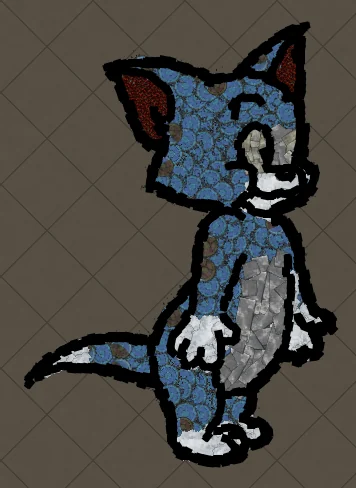 Cartoons
How to Make Tom the Cat Hideout Art in Path of Exile
Tom from Tom and Jerry is all expressive curves: pointed ears, a long tail and a two-tone blue-grey body. The outline engine follows every one of those curves, which makes Tom a great showcase of how decorations bend along a drawing.
Cartoons
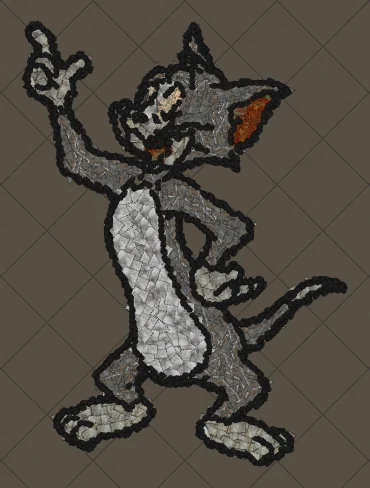
How to Make Tom Waving Hideout Art in Path of Exile
Tom in a full-body waving pose. Long limbs and a long tail make this a great example of decorations being rotated to follow the direction of each line.
 Pokémon
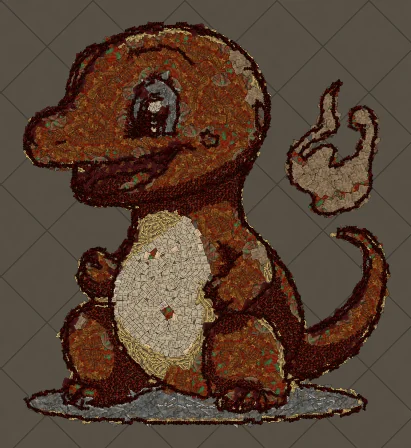
How to Make Charmander Hideout Art in Path of Exile
Charmander, the Fire-type starter Pokémon, is one of the most loved designs in the series. Its warm orange body, cream belly and flame-tipped tail map beautifully onto the earthy reds and browns that Path of Exile decorations do best.
Keep reading
 Guides
How to Make Pikachu Hideout Art in Path of Exile
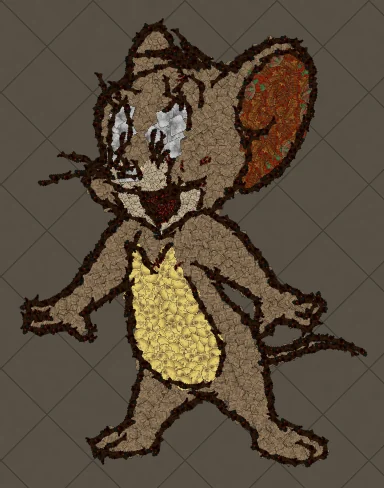
Step by step recreation of Pikachu as Path of Exile hideout decorations.
 Tips
Best Art Size for Pikachu Hideout Art
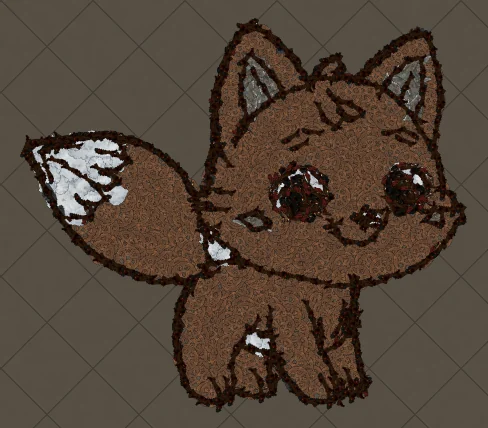
Which art size keeps Pikachu readable inside the 750 decoration limit.
 Guides
Pikachu Hideout Art in Path of Exile 2
How to build Pikachu with Path of Exile 2 decorations and hideouts.