How to Import Hideout Art into Path of Exile
Import a .hideout file into your Path of Exile hideout, and fix the most common problems.
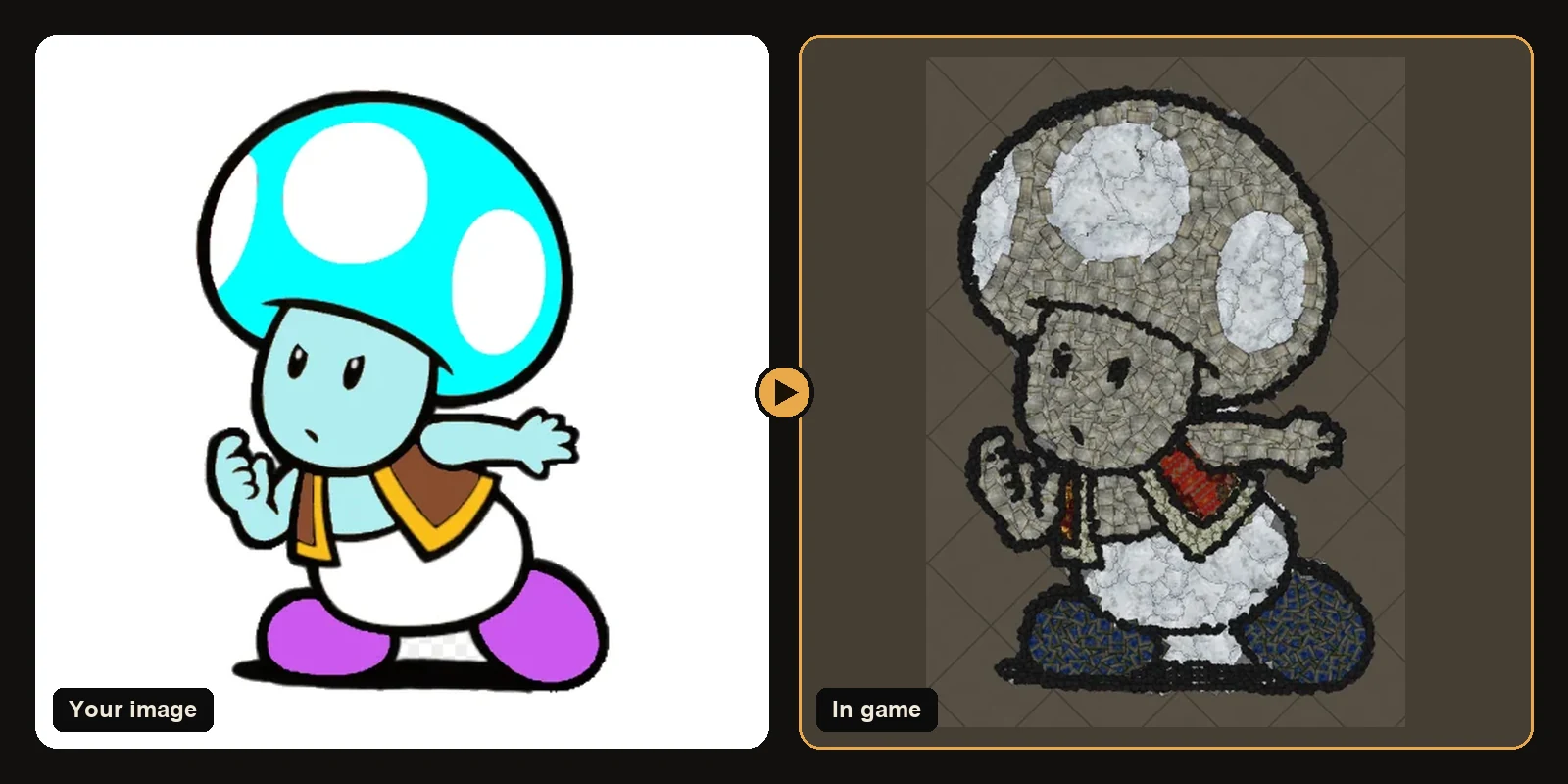
Once you have a .hideout file, importing it into Path of Exile takes under a minute. This guide covers the exact steps, how to keep your current layout safe, and how to fix every common import problem.
What a .hideout file is
A .hideout file is a small text file the game itself uses to share hideouts. It lists the hideout type and every object in it: each decoration's name, position, rotation and variation. When you import one, the game rebuilds the hideout from that list. Files from the generator use the same format, which is why they import with the normal game button.
Step 1: Back up your current hideout
Importing replaces the current layout of that hideout. If you like your current setup:
- Go to your hideout and open Edit Hideout.
- Click Export and save the file somewhere you will find it.
You can re-import that file at any time to undo.
Step 2: Import the hideout art
- Travel to the hideout the art was made for.
- Open Edit Hideout (the hideout decoration menu).
- Click Import and pick the
.hideoutfile you downloaded. - Confirm. The decorations appear at the positions stored in the file.
That is all. If you chose to keep your existing objects on the generator, your stash, waypoint, crafting bench and masters are in the file and stay where they were.
Import into the same hideout type
A .hideout file stores which hideout it was made for, and the game only imports it into that same hideout type. If you made art for the Robber's Trench and you are standing in the Coral Hideout, the import will not work. Two fixes:
- Switch to the right hideout in game, then import.
- Or generate again on the website with your current hideout selected.
Missing decorations
If you do not own a decoration, the game skips it on import. The picture still appears, but with gaps where those pieces should be.
- The result page lists every decoration used with its count, so check it before importing.
- Unlock the missing ones, then import again.
- If you prefer not to use store decorations, turn off shop decorations on the generator and generate again.
The art is in the wrong place
The generator places art at the hideout centre by default. If it lands somewhere awkward, change the X/Y position on the generator, generate again and re-import. A good spot is somewhere you pass every time: next to the stash or the waypoint.
Importing into Path of Exile 2
The steps are the same in PoE 2: open the hideout edit menu, choose Import and select the file. Make sure the art was generated with Path of Exile 2 selected, because PoE 1 and PoE 2 hideouts are different types.
Quick checklist
- Right game selected on the generator.
- Right hideout selected on the generator.
- Current layout exported as a backup.
- Decorations in the list unlocked.
- Imported from the hideout edit menu.
Next steps
- How to make hideout art: the full walkthrough.
- How many decorations does hideout art use?
- Browse art guides for ideas.
Art guides
View all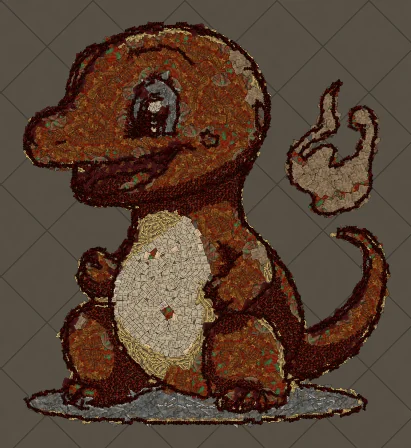 Pokémon
How to Make Charmander Hideout Art in Path of Exile
Charmander, the Fire-type starter Pokémon, is one of the most loved designs in the series. Its warm orange body, cream belly and flame-tipped tail map beautifully onto the earthy reds and browns that Path of Exile decorations do best.
 Sports
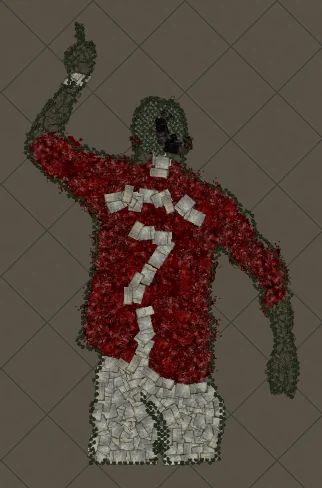
How to Make Football Star No. 7 Hideout Art in Path of Exile
A football celebration silhouette with the famous number 7 on the back. Sports art like this works because the pose and the shirt colours carry the whole image, and both translate cleanly into decorations.
 Cartoons
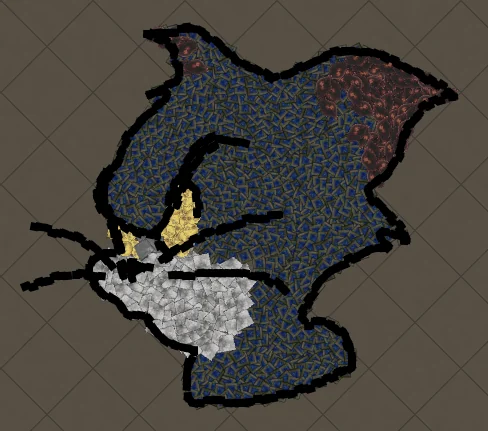
How to Make Tom Portrait Hideout Art in Path of Exile
A close-up of Tom's face, with sharp eyes and a sly expression. Portraits put all the decorations into the face, so expressions come through with surprising detail.
Keep reading
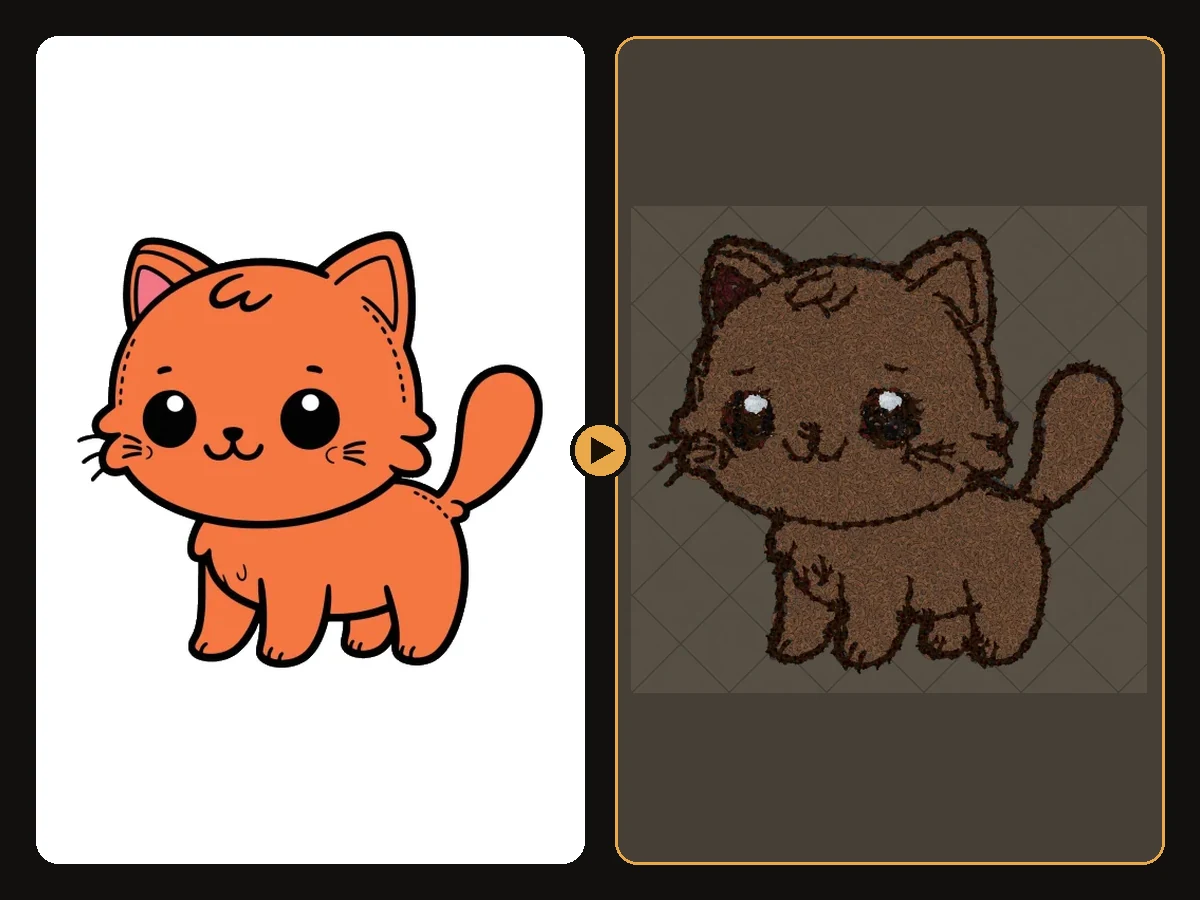 Tips
Tips
Best Images for PoE Hideout Art
Which images turn into great Path of Exile hideout art, and how to prepare them.
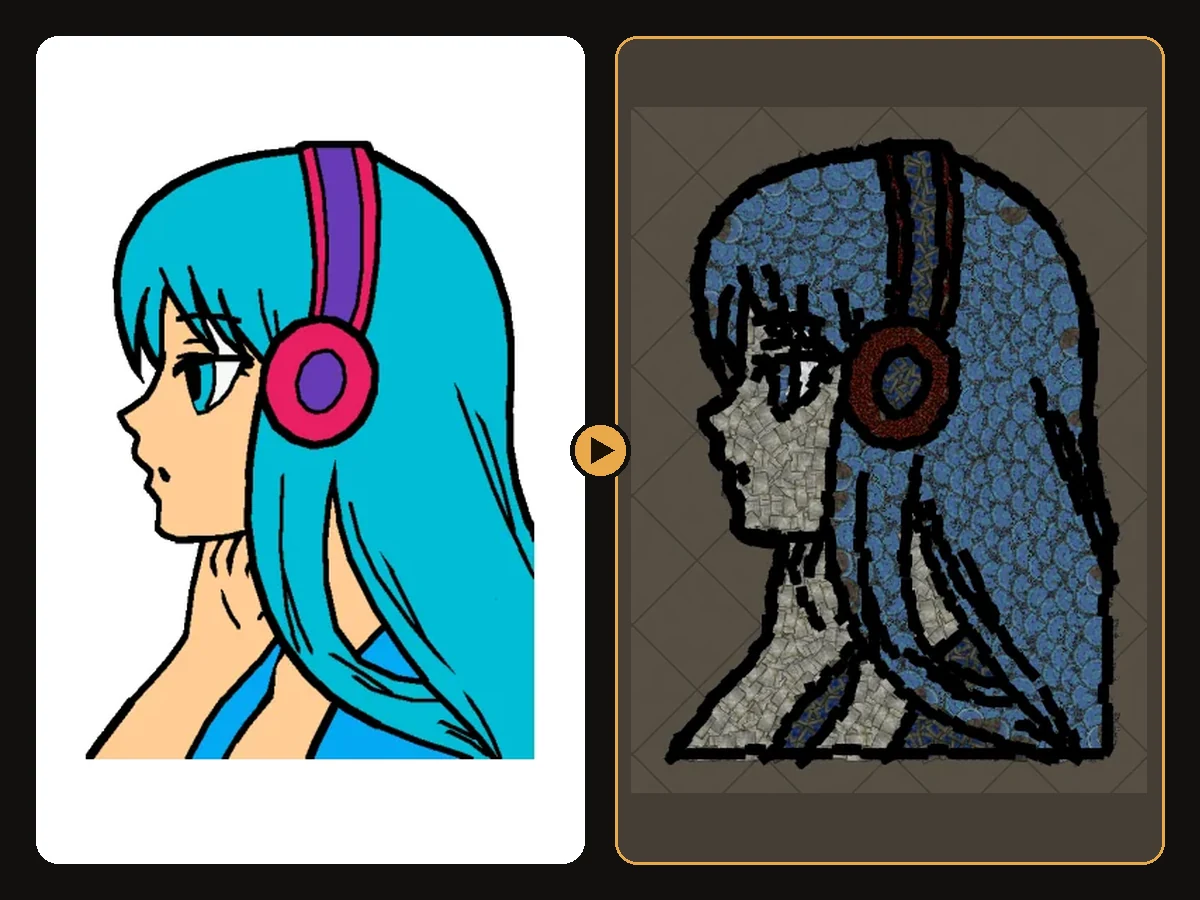 Explained
How PoE Hideout Art Actually Works
What happens between uploading an image and importing a hideout full of decorations.
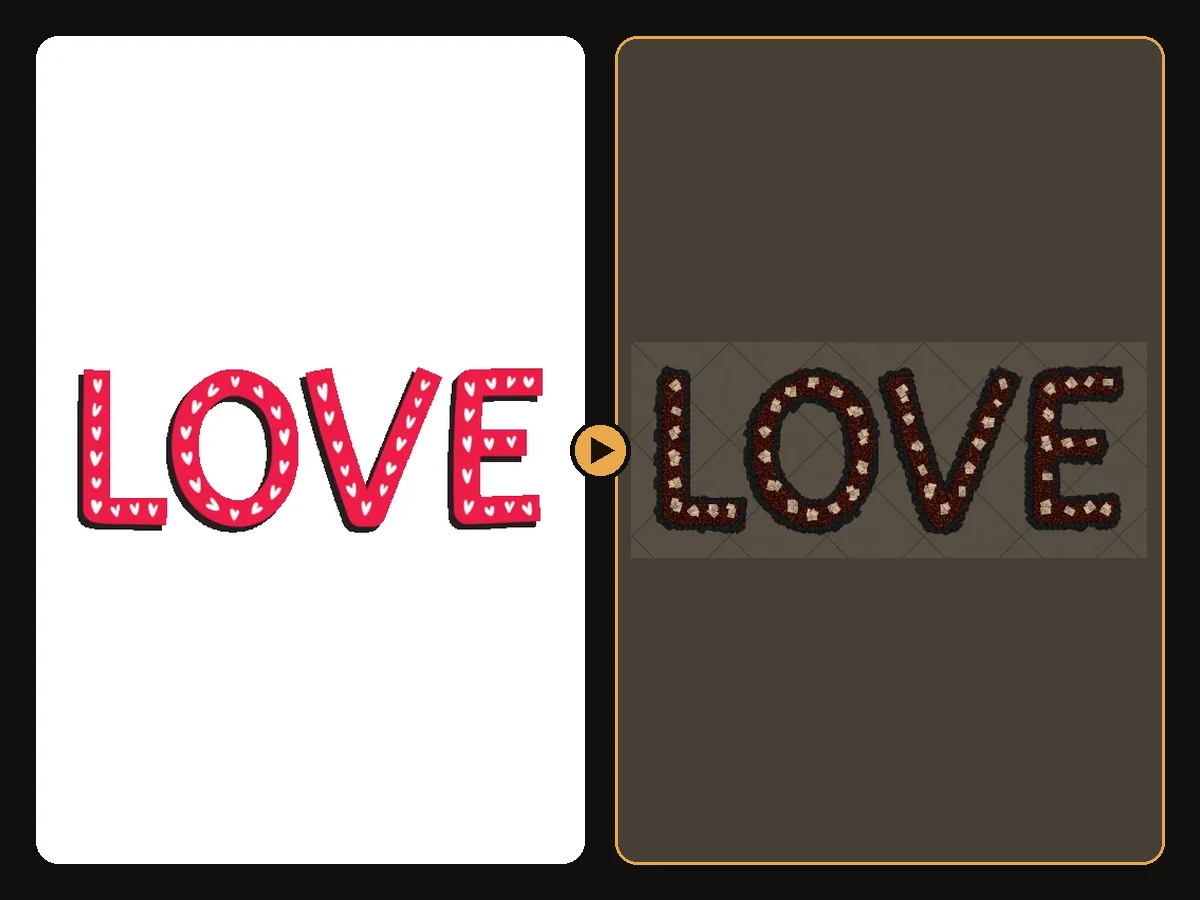 Explained
How Many Decorations Does Hideout Art Use?
Typical decoration counts for generated hideout art, and how to use fewer.