Cleaning a Zoro Image Before Hideout Conversion
Preparing a Zoro image so the generator keeps a clean silhouette.
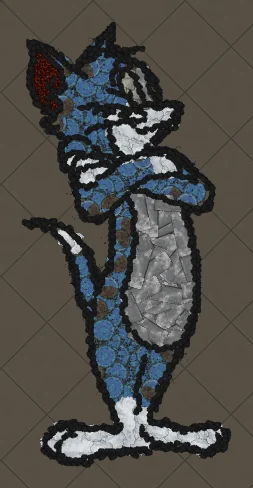
A few minutes of image prep usually beats regenerating Zoro five times.
Preparing a Zoro image so the generator keeps a clean silhouette.
The same ideas apply in Path of Exile 1 and Path of Exile 2 unless a step says otherwise.
Build it
- Open the POE Hideout Art Generator.
- Pick Path of Exile 1 or 2 and the hideout you actually use.
- Upload a clean Zoro image with a plain or transparent background.
- Start around 100 art size units, then raise size if faces or text look soft.
- Preview first. Download the
.hideoutfile only when the silhouette reads clearly.
Prep checklist
- Crop tight to Zoro.
- Remove busy backgrounds.
- Prefer flat colours over heavy gradients.
- Export PNG with transparency when you can.
Next steps
Art guides
View all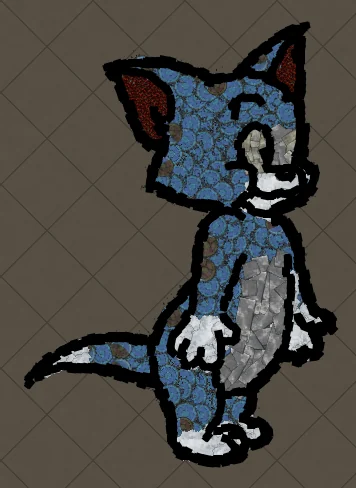 Cartoons
How to Make Tom the Cat Hideout Art in Path of Exile
Tom from Tom and Jerry is all expressive curves: pointed ears, a long tail and a two-tone blue-grey body. The outline engine follows every one of those curves, which makes Tom a great showcase of how decorations bend along a drawing.
 Cartoons
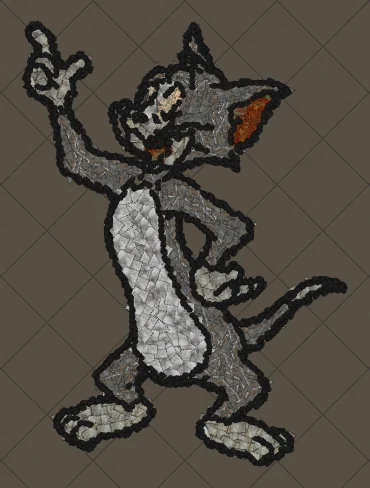
How to Make Tom Waving Hideout Art in Path of Exile
Tom in a full-body waving pose. Long limbs and a long tail make this a great example of decorations being rotated to follow the direction of each line.
 Pokémon
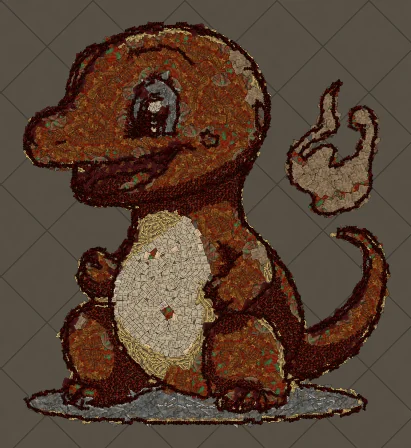
How to Make Charmander Hideout Art in Path of Exile
Charmander, the Fire-type starter Pokémon, is one of the most loved designs in the series. Its warm orange body, cream belly and flame-tipped tail map beautifully onto the earthy reds and browns that Path of Exile decorations do best.
Keep reading
 Guides
How to Make Pikachu Hideout Art in Path of Exile
Step by step recreation of Pikachu as Path of Exile hideout decorations.
 Tips
Best Art Size for Pikachu Hideout Art
Which art size keeps Pikachu readable inside the 750 decoration limit.
 Guides
Pikachu Hideout Art in Path of Exile 2
How to build Pikachu with Path of Exile 2 decorations and hideouts.