PoE 2 Performance Settings When Showing Art for Beginners
PoE 2 Performance Settings When Showing Art. Guidance for beginners.
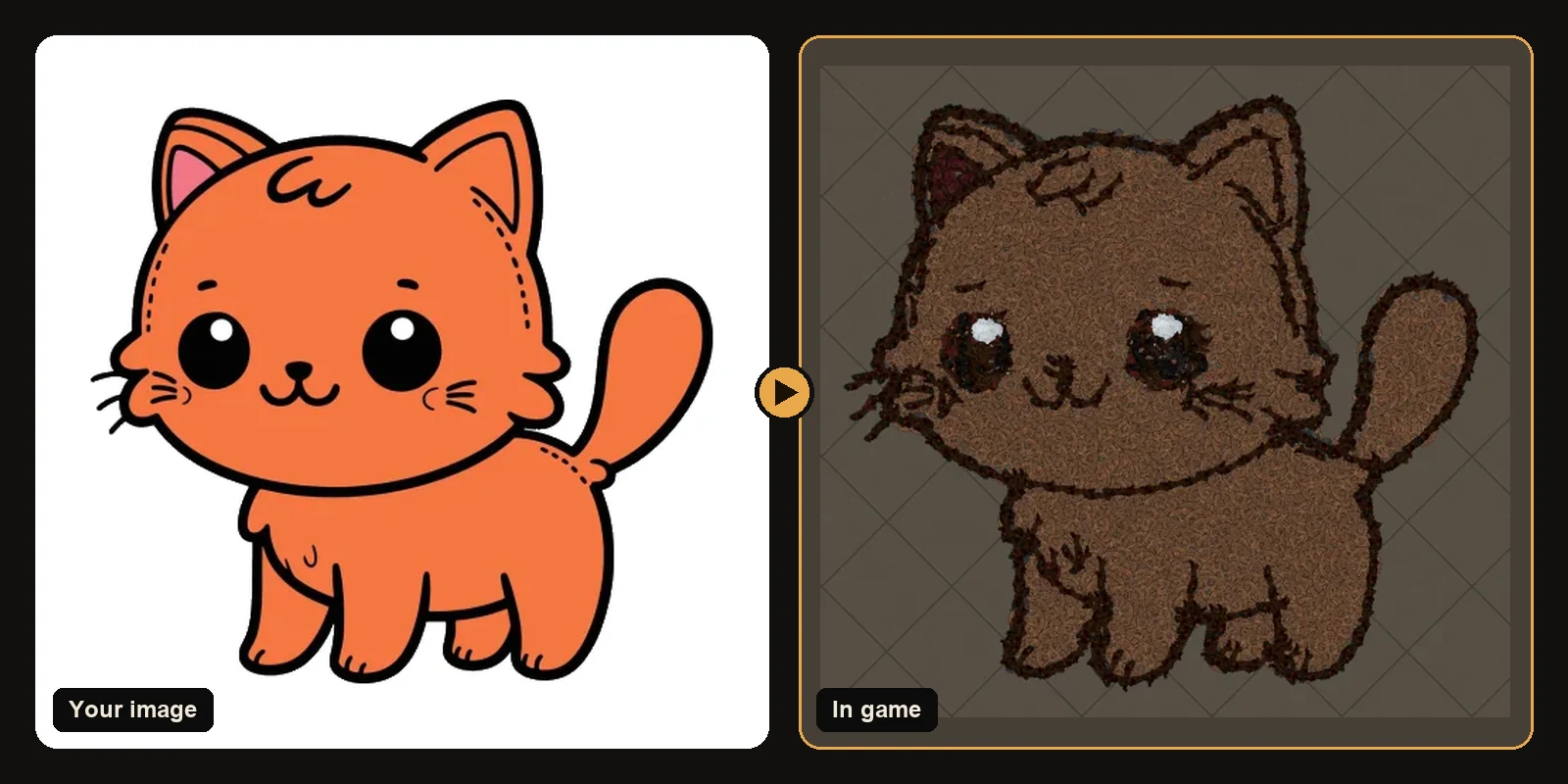
PoE 2 Performance Settings When Showing Art. Guidance for beginners.
This guide focuses on Path of Exile 2. Switch the generator to PoE 2 before you build anything so the file uses PoE 2 decorations and hideout types.
PoE 2 hideout art notes
Path of Exile 2 has its own hideouts and decoration list. In the generator switch the game to Path of Exile 2 before you build anything. The camera sits a little differently so a size that worked in PoE 1 can feel smaller. The outline and colour layout stay familiar. The material of the picture changes with the PoE 2 catalogue.
Steps
- Open the generator and select Path of Exile 2
- Pick the PoE 2 hideout you actually use
- Upload a bold clean image
- Preview and adjust art size for faces if needed
- Download the
.hideoutfile - Import from the hideout edit menu after a backup export
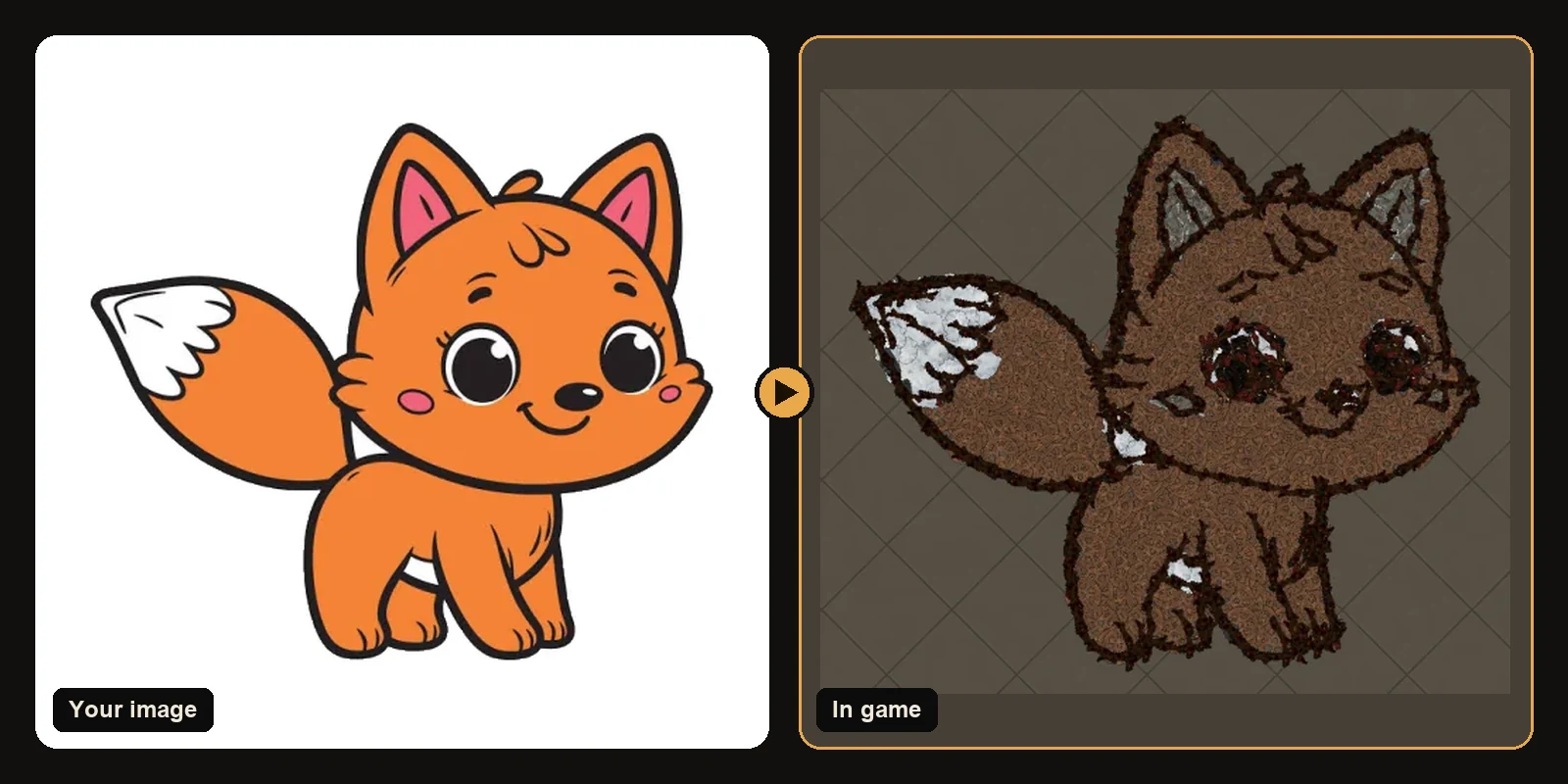
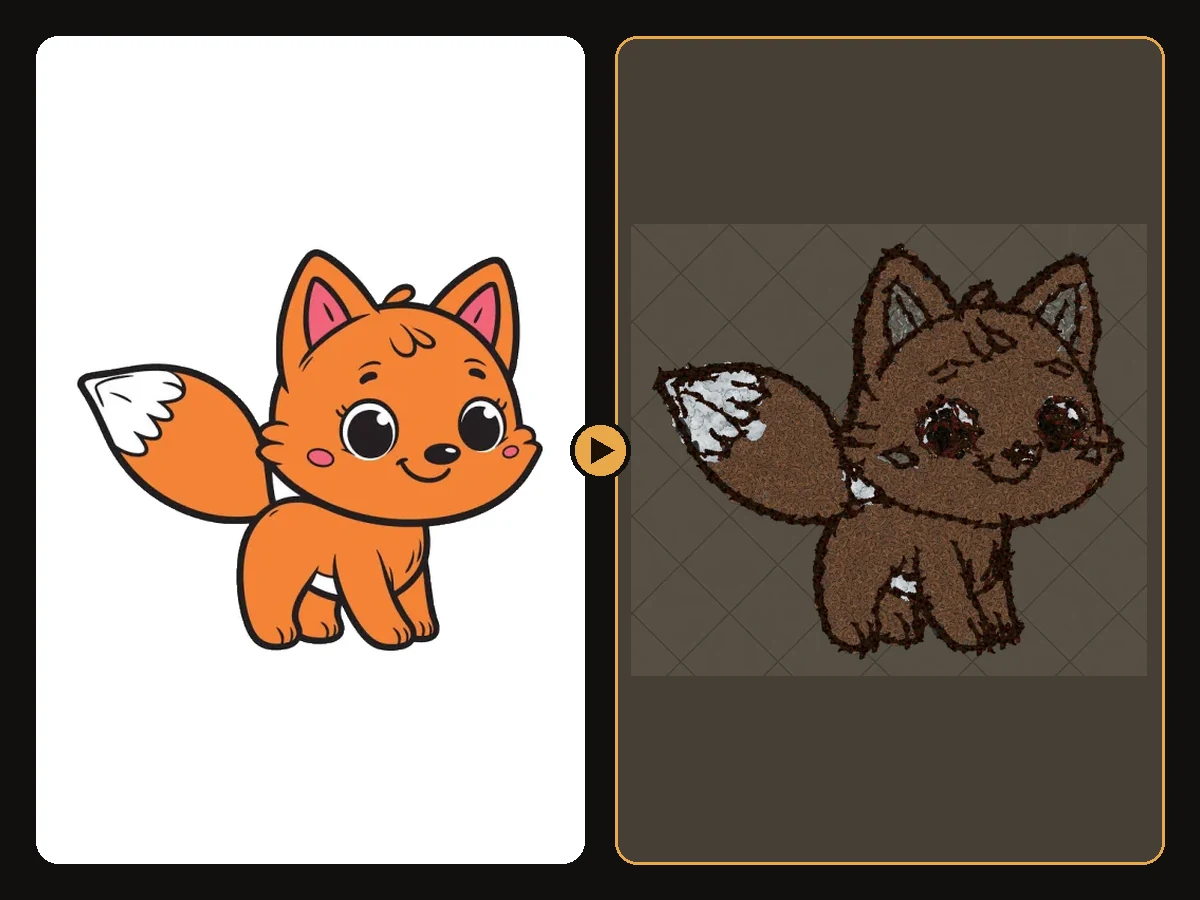
Choosing images for PoE 2
What works in PoE 1 works in PoE 2:
- Bold outlines from cartoons logos and line art
- A few flat colours instead of busy gradients
- One clear subject with the background removed
Unlock decorations listed on the result page before you expect a complete import. Friends need the same hideout type and ownership to load your file.
PoE 2 import reminders
A file made for PoE 1 will not open in a PoE 2 hideout. Generate again with PoE 2 selected if you switched games. Keep functional objects enabled if you want stash and crafting to survive the import. Place the art where you stand most so the camera already frames it.
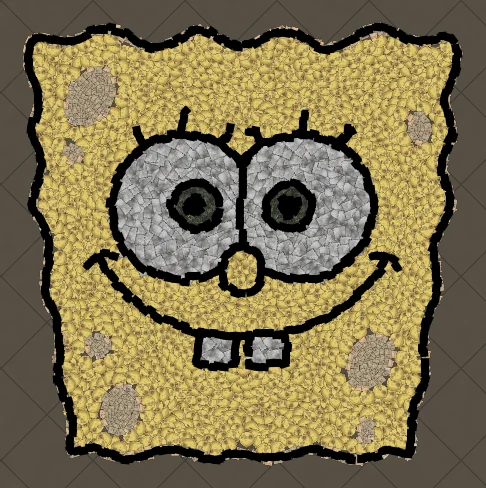
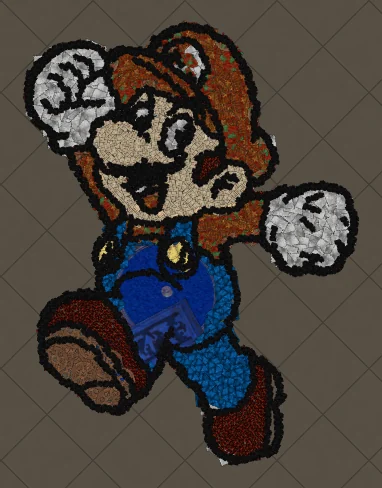
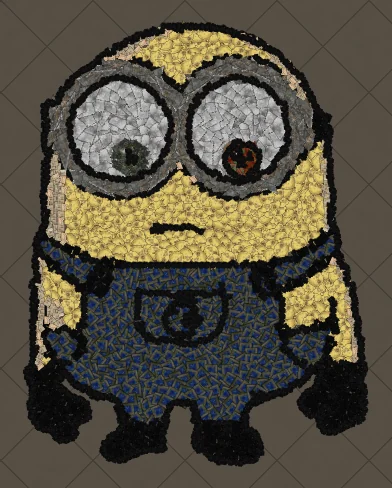
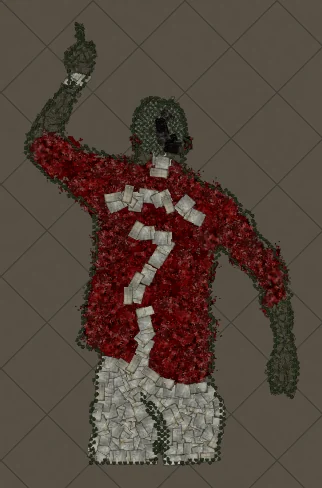
Next steps
- How to make hideout art: the full step-by-step walkthrough.
- Best images for PoE hideout art: what converts best and how to prepare it.
- How to import hideout art: getting the file into your hideout.
- How PoE hideout art works: what the generator does under the hood.
- How many decorations does hideout art use?: art size, the 750 cap and typical counts.
- Open the generator and try a free preview.
Art guides
View all
Cartoons
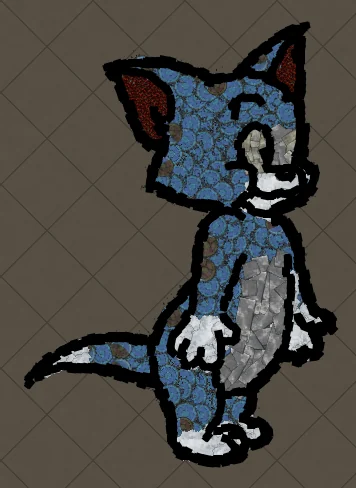
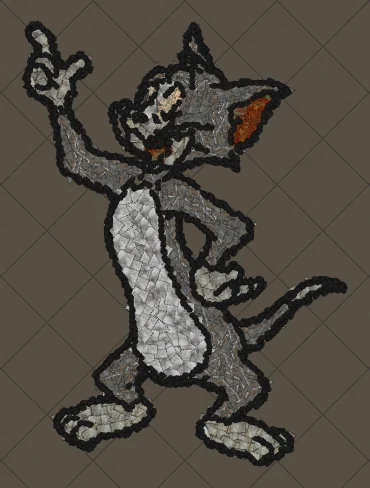
How to Make Tom the Cat Hideout Art in Path of Exile
Tom from Tom and Jerry is all expressive curves: pointed ears, a long tail and a two-tone blue-grey body. The outline engine follows every one of those curves, which makes Tom a great showcase of how decorations bend along a drawing.
 Cartoons
How to Make Tom Waving Hideout Art in Path of Exile
Tom in a full-body waving pose. Long limbs and a long tail make this a great example of decorations being rotated to follow the direction of each line.
Pokémon
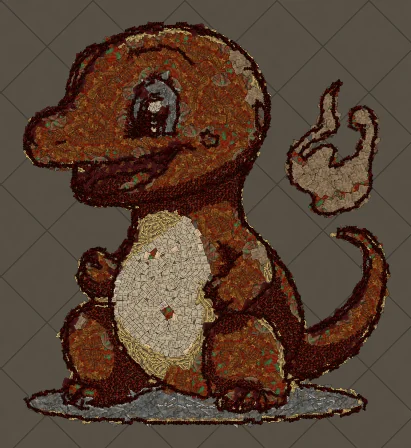
How to Make Charmander Hideout Art in Path of Exile
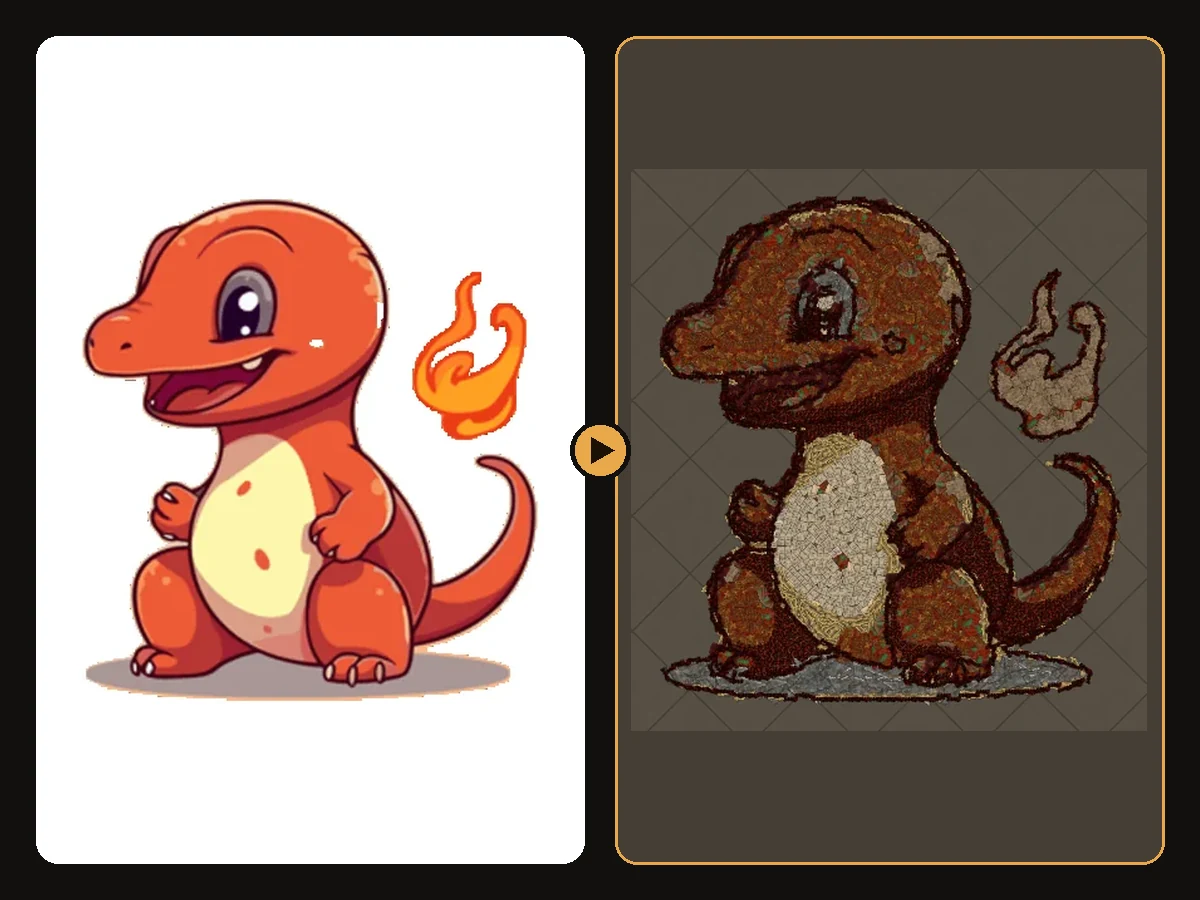
Charmander, the Fire-type starter Pokémon, is one of the most loved designs in the series. Its warm orange body, cream belly and flame-tipped tail map beautifully onto the earthy reds and browns that Path of Exile decorations do best.
Keep reading
 Guides
How to Make Sharp Looking Hideout Art
Practical steps so generated Path of Exile hideout art stays readable from the camera.
 Tips
How to Keep a Clean Silhouette in Hideout Art
Cropping and background choices that stop the generator from building clutter.
 Guides
How to Turn a Logo into Hideout Art
Flat colours and bold shapes make logos some of the cleanest hideout art.